Complete Guide
Using Ascend
A step-by-step walkthrough, from first launch to tracking your progress.
In This Guide
Step 1
Getting Started
First Launch
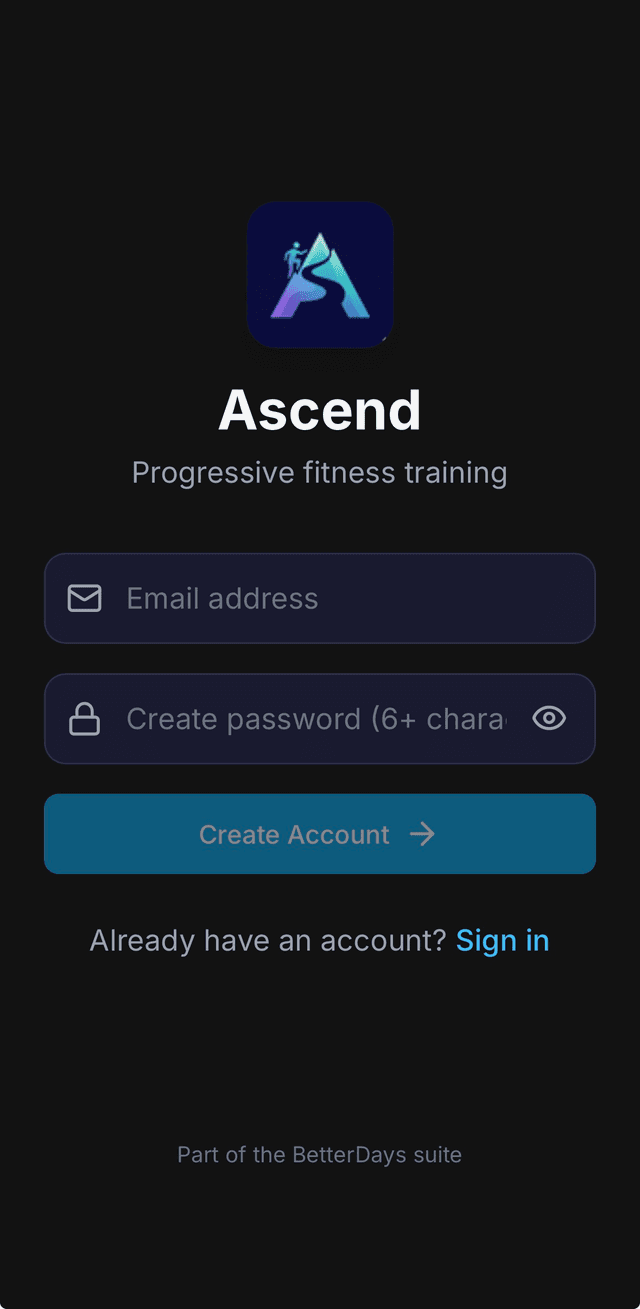
When you first open Ascend, you'll go through a short setup process:
- Create an account: Enter your email and create a password (6+ characters). You'll receive a verification email. Tap the link, then return to the app and tap I've Verified My Email.
- Health disclaimer: Read and accept the safety guidelines.
- Onboarding walkthrough: A guided tour introducing the app. You'll create your first exercise and optionally record your max.
After onboarding, you'll land on the Exercises page to enter the exercises you want to do and track.
The Five Main Tabs
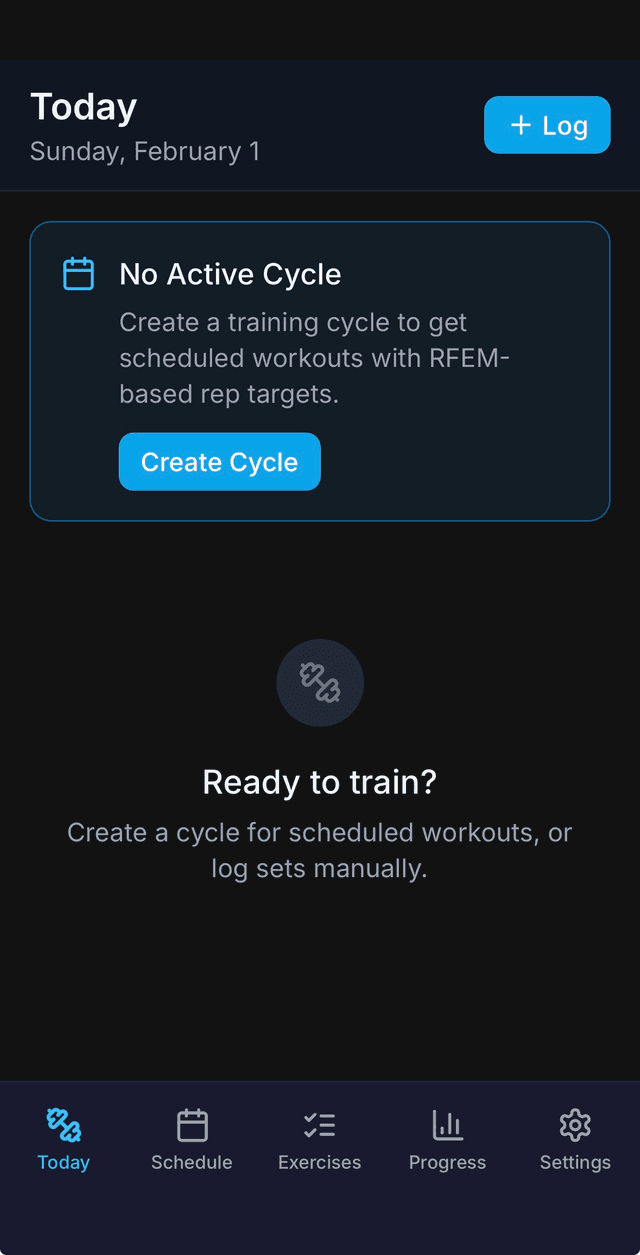
The bottom tab bar gives you access to everything in Ascend:
- Today: Your current workout and daily stats
- Schedule: All workouts in your active cycle (list or calendar view)
- Exercises: Your exercise library with search and filtering
- Progress: Training analytics and volume stats
- Settings: Preferences, account, and data management
Free Trial
New users get 4 weeks of full access to all features, no credit card required. After the trial, purchase one time for lifetime access.
Step 2
Creating Exercises
In Ascend, you build your own exercise library; there's no predefined list to fight with.
Adding a New Exercise
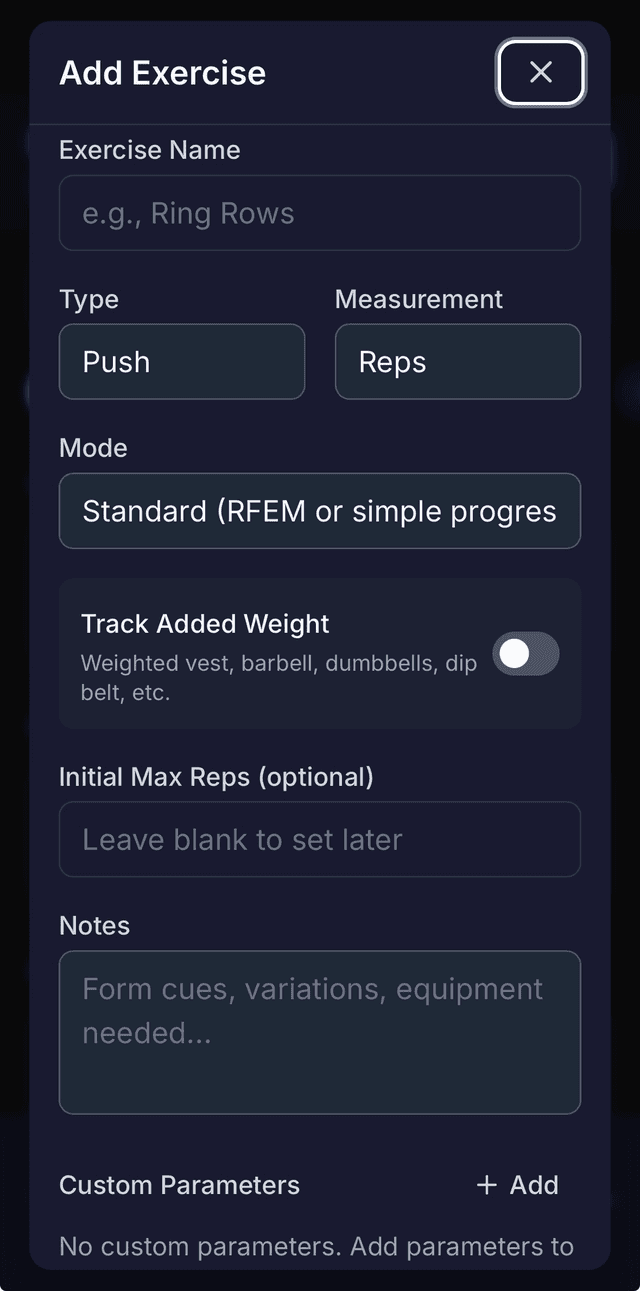
Go to the Exercises tab and tap + Add in the top right. You'll fill in:
Exercise Fields
- Exercise NameWhat you call this movement (e.g., "Ring Rows", "Archer Push Ups")
- TypePush, Pull, Legs, Core, Balance, Mobility, or Other
- MeasurementReps (counted repetitions) or Time (duration like planks)
- ModeStandard (for RFEM progression) or Conditioning (consistent baseline with weekly increments)
- Initial MaxYour current maximum reps or time (optional, set later)
Recording Your Max
Your “max” is the foundation of RFEM training: it's the most reps (or longest time) you can perform with good technique.
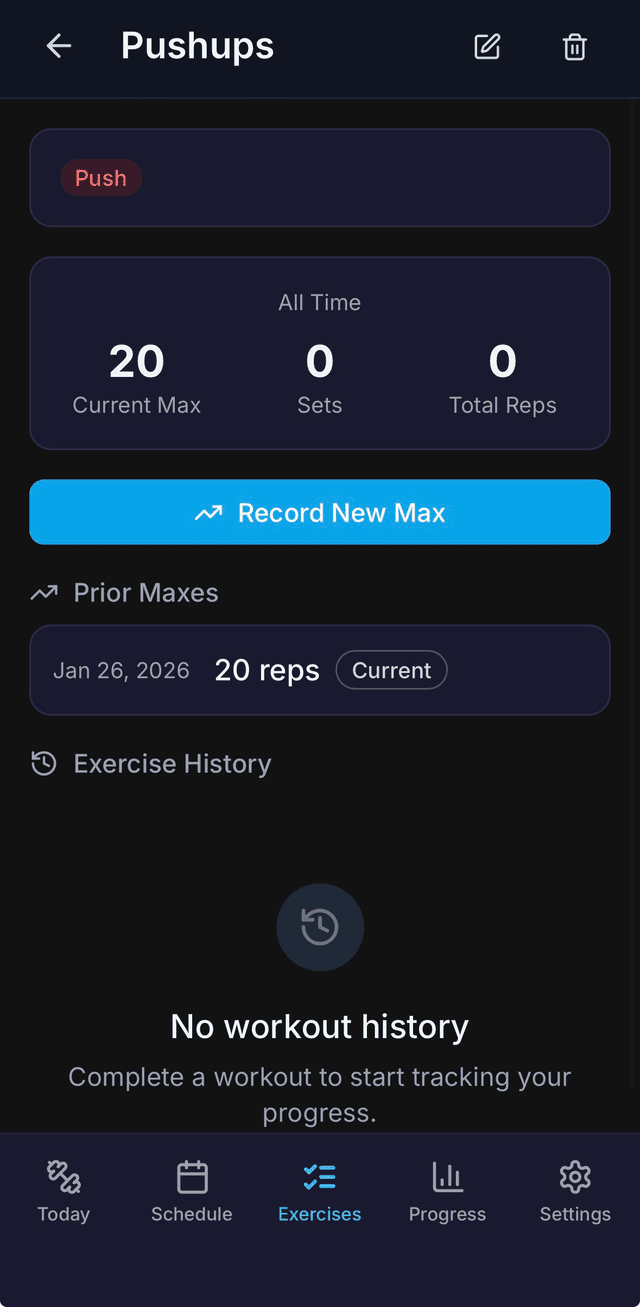
You can set your max when creating an exercise, or add it later from the exercise detail page by tapping Record New Max.
If you're unsure of your max, start with an estimate. You can update it anytime by recording a new max or running a Max Testing cycle.
Pro Tip
Your max should be a true max: the most reps you can complete with good form. Warm up properly, then give it your best effort. Don't stop early with reps left in the tank.
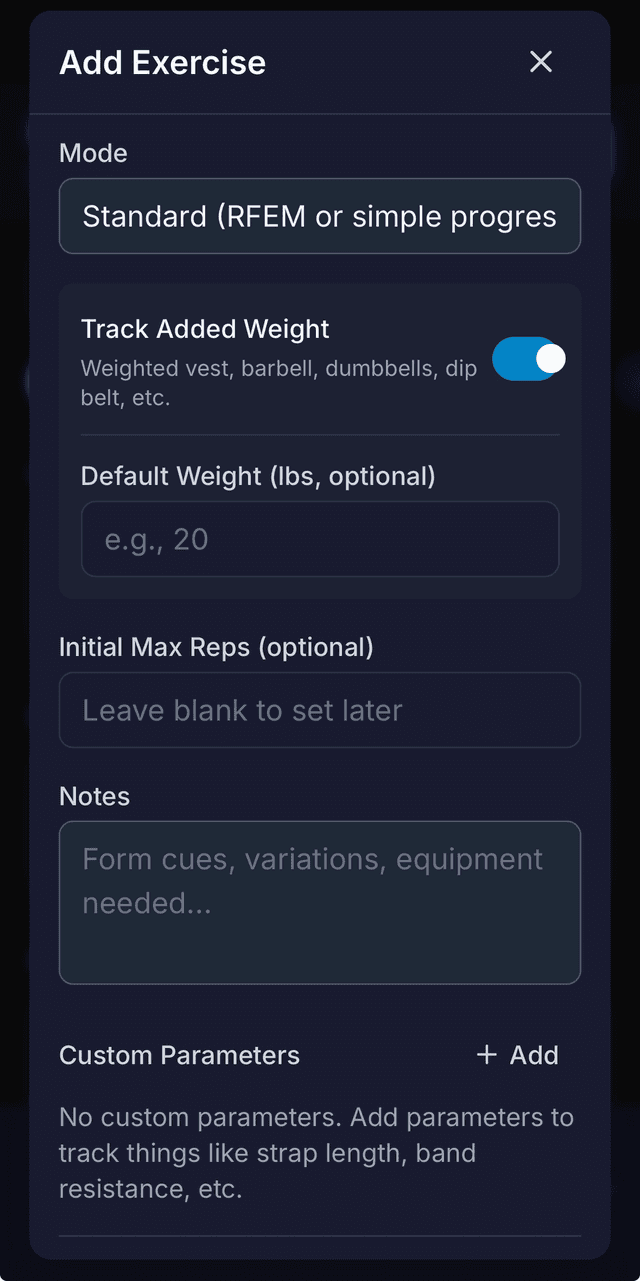
Optional: Track Added Weight
If you train with added resistance, whether a weight vest, dip belt, dumbbells, barbells, or machines, enable Track Added Weight when creating the exercise. This reveals a Default Weight field that pre-fills when logging sets.
You can also add Custom Parameters to track exercise-specific variables: things like strap length, band resistance, or grip width.
Step 3
Setting Training Defaults
Configure Once, Use Everywhere
Before creating your first cycle, take a moment to set up your defaults. These preferences will pre-fill when you create new cycles, saving you time.
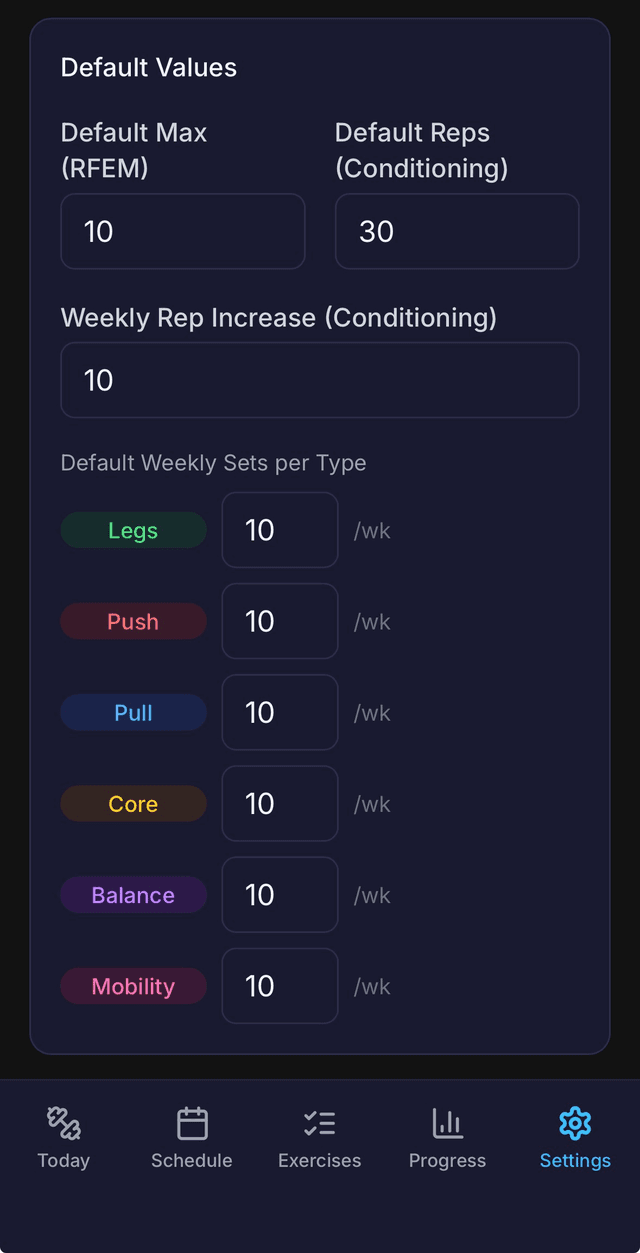
Go to Settings → Training Defaults. Key settings include:
Training Defaults
- Default Max (RFEM)Assumed max when an exercise has no recorded max
- Weekly Sets per TypeTarget sets for Push, Pull, Legs, Core, Balance, and Mobility
- Conditioning DefaultsStarting reps and weekly increment for conditioning exercises
Rest Timer Settings
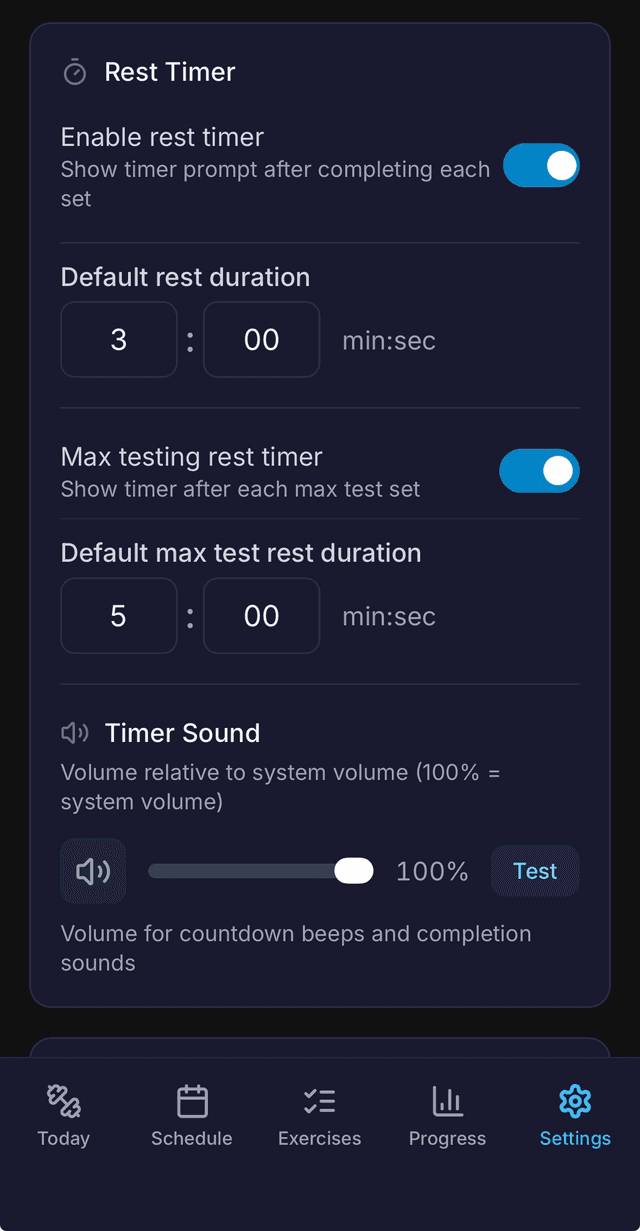
In Settings → Rest Timer, configure:
- Enable rest timer: When on, a timer appears automatically after each completed set
- Default rest duration: Choose from 10 seconds to 10 minutes
- Max testing rest: Separate duration for max testing workouts (typically longer)
- Timer sound volume: Adjust countdown beeps and completion sounds
Step 4
Creating Your First Cycle
A cycle is a structured training block, typically 1 to 12 weeks, that organizes your exercises, defines your training frequency, and determines how your targets progress. When you're ready, tap Create New Cycle from the Today page or Schedule page.
Choose Your Cycle Type
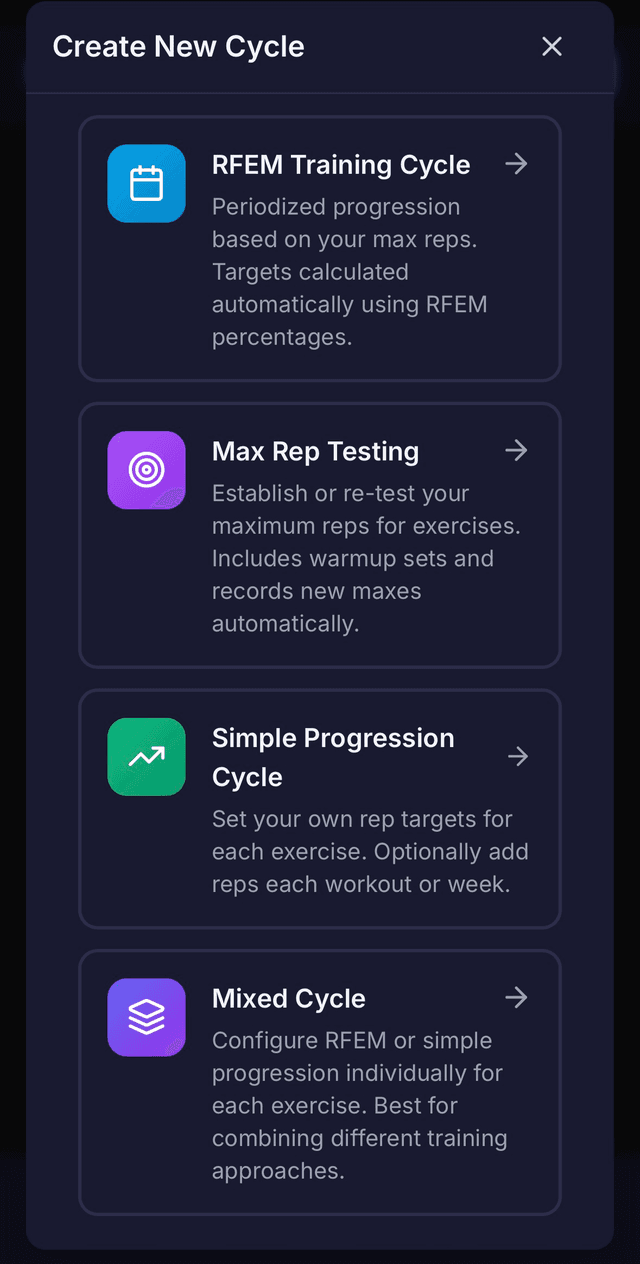
First, select the type of cycle you want to create:
- RFEM Training Cycle: Periodized progression based on your max. Targets are calculated automatically using RFEM rotation values.
- Max Rep Testing: A dedicated cycle for establishing or re-testing your maximum reps/time.
- Simple Progression: Fixed targets with optional linear increments each workout or week. (Advanced tier)
- Mixed Cycle: Configure RFEM or Simple progression independently for each exercise. (Advanced tier)
For your first cycle, RFEM Training Cycle is recommended, unless you'd prefer to start with a Max Testing Cycle to solidly establish your baseline maxes first.
The Cycle Creation Wizard
The wizard walks you through 6 steps. A progress bar at the top tracks your position. If you've created a cycle of the same type before, the wizard pre-fills with your previous settings as defaults.
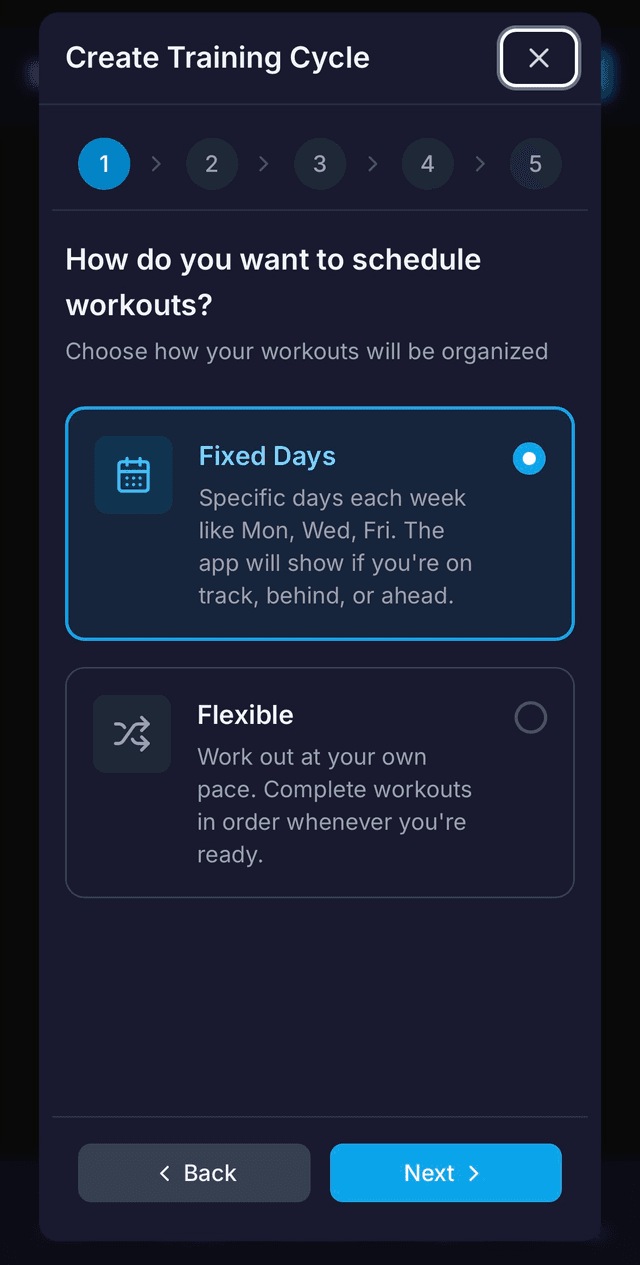
Schedule Mode
Choose how workouts are scheduled:
- Fixed Days: Select specific days of the week (e.g., Mon/Wed/Fri). Workouts appear on those calendar dates. If you miss a workout, it shows as overdue; you can complete it as your next workout or skip it.
- Flexible: Complete workouts in whatever order and pace you choose. No calendar dates, just a sequence of workouts to get through.
Fixed Days works well if you have a consistent schedule. Flexible is better if your availability varies.
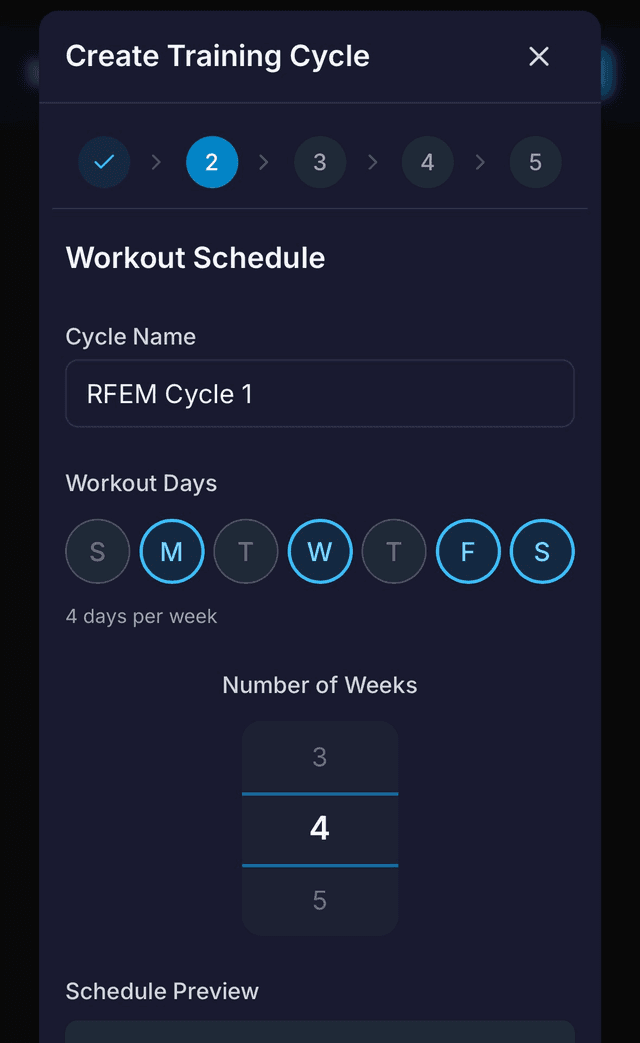
Schedule Details
Configure the timing of your cycle:
- Cycle Name: A label for this cycle (e.g., “Winter 2026 Block 1”)
- Training Days: For Fixed Days mode, tap the days you'll train. For Flexible mode, choose workouts per week (1-7).
- Number of Weeks: Select 1-12 weeks
A summary shows your total workouts (e.g., “12 total workouts - 3 per week for 4 weeks”).
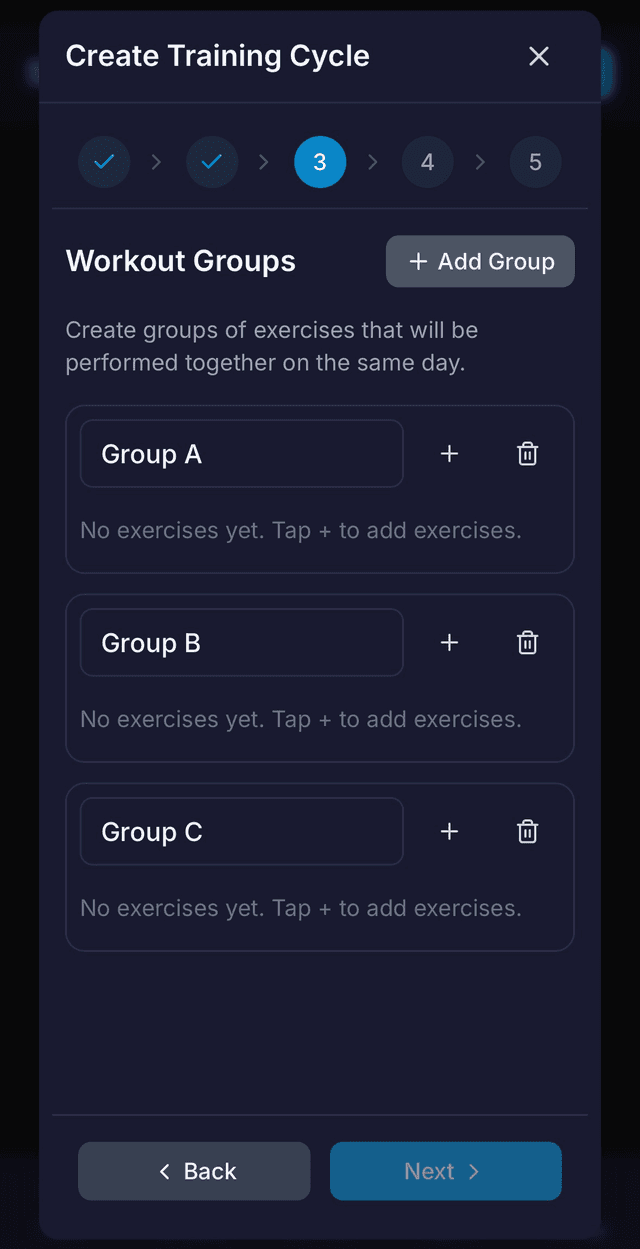
Exercise Groups
Groups are collections of exercises performed together in a single workout. You might have one group for a full-body routine, or multiple groups to split your training.
For each group:
- Give it a name (e.g., “Upper Body A”)
- Tap Add Exercises to select from your library
- Remove exercises or groups by tapping the corresponding trash icon
Tap + Add Group to create additional groups if you want to split your training across different workout types.
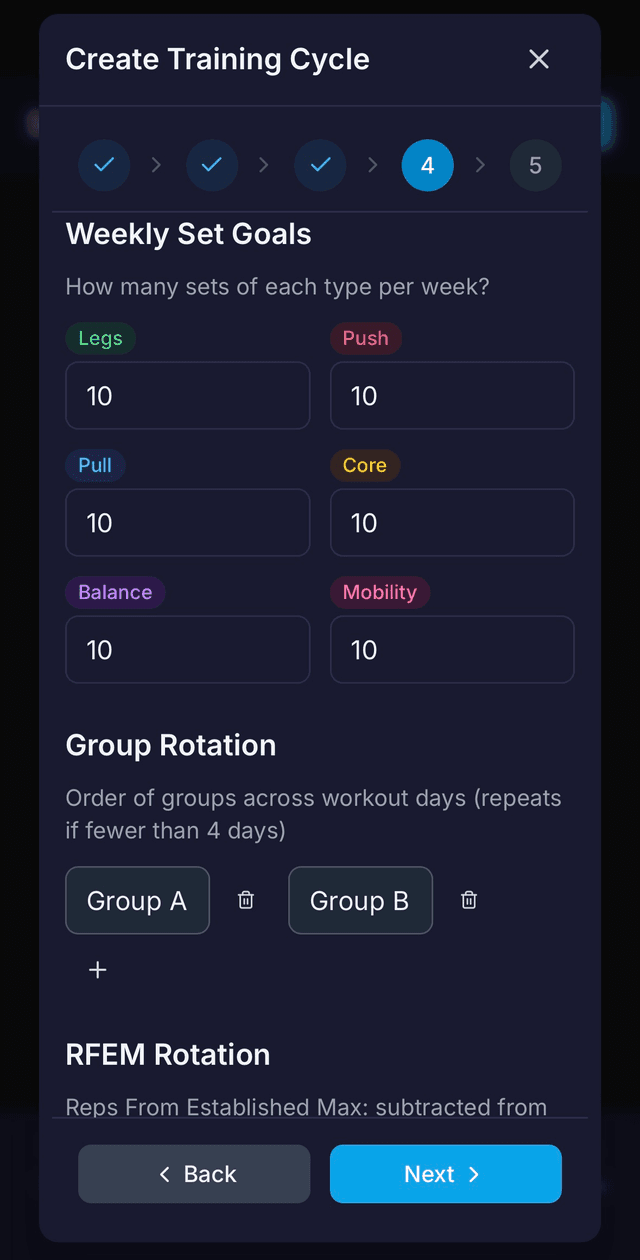
Goals & Rotation
Configure your training structure:
- Weekly Set Goals: Target sets per exercise type (Push, Pull, Legs, etc.). The app uses these to determine how many sets of each type to schedule per workout, distributing them across your exercises and days.
- Group Rotation: The order groups rotate across workout days. If you have groups A and B and train 3 days, rotation [A, B] becomes A, B, A, B, A, B...
- RFEM Rotation: The intensity sequence (default: 4-3-2). Lower values = harder workouts (closer to your max).
- Warmup Sets: Enable to auto-generate warmup sets at 20% and 40% of your max.
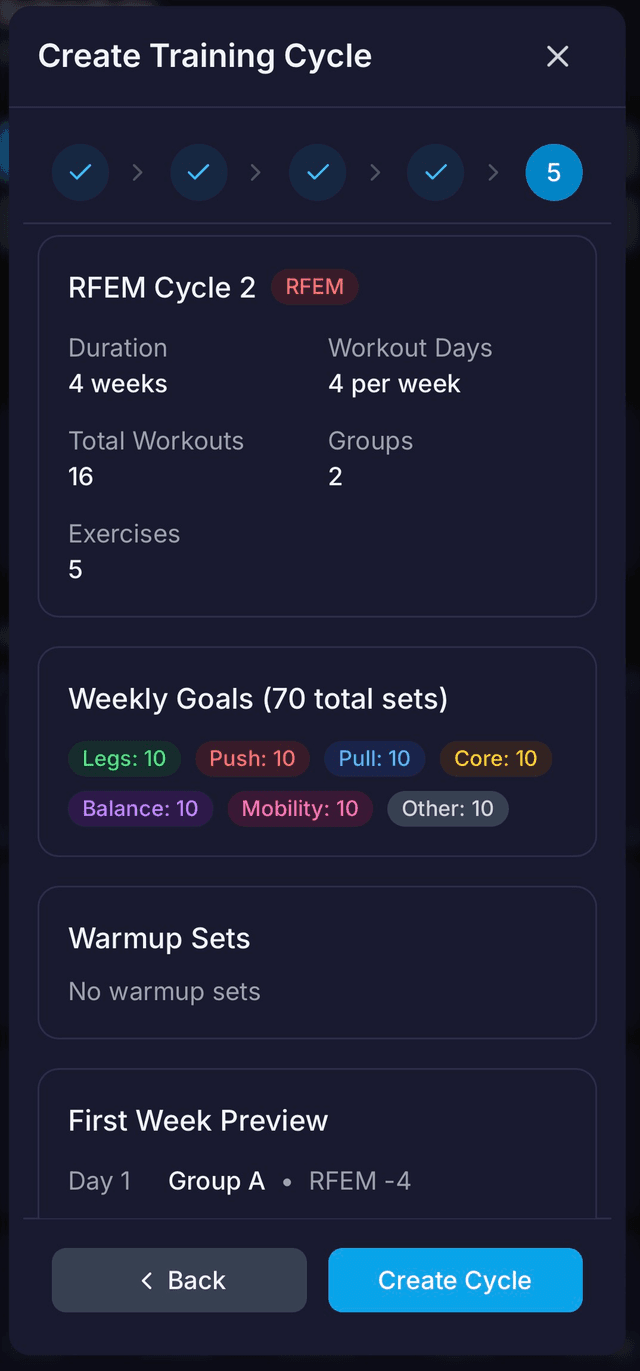
Review & Create
A summary of your entire cycle configuration. You'll see:
- Cycle name, duration, and total workouts
- Groups with their exercises listed
- Weekly set goals as colored badges
- First-week workout preview showing which group and RFEM value for each day
If everything looks good, tap Create Cycle. Your first workout will appear on the Today page, ready to go.
Step 5
Logging a Workout
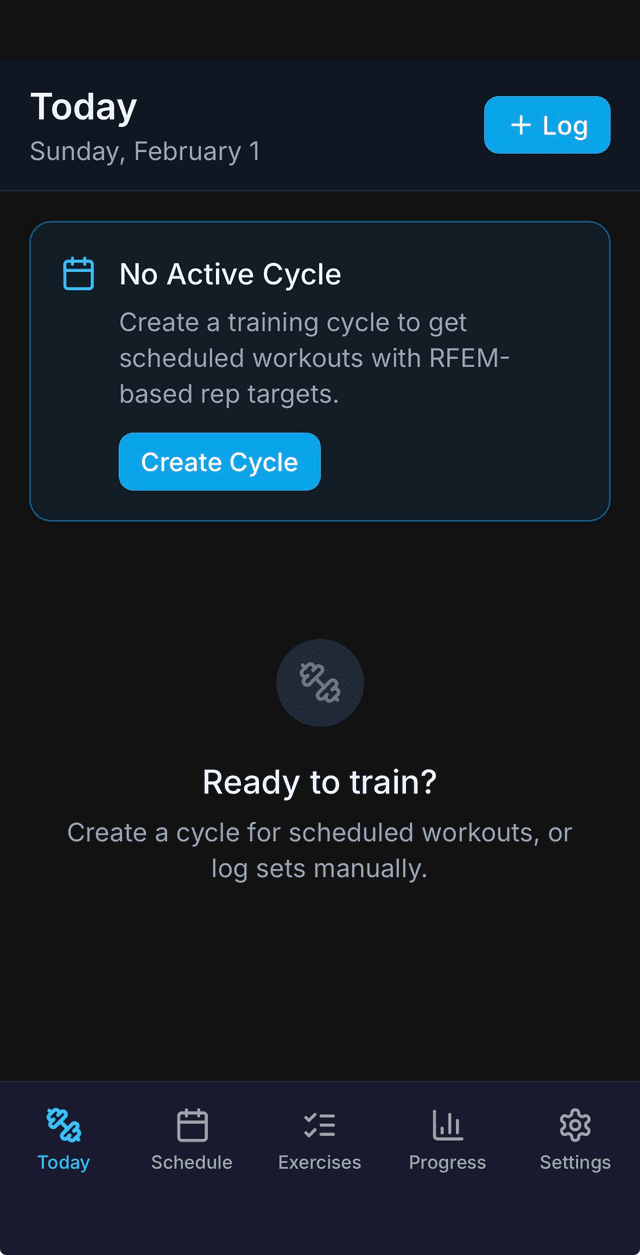
When you have an active cycle, the Today page shows your current workout. Here's how to work through it.
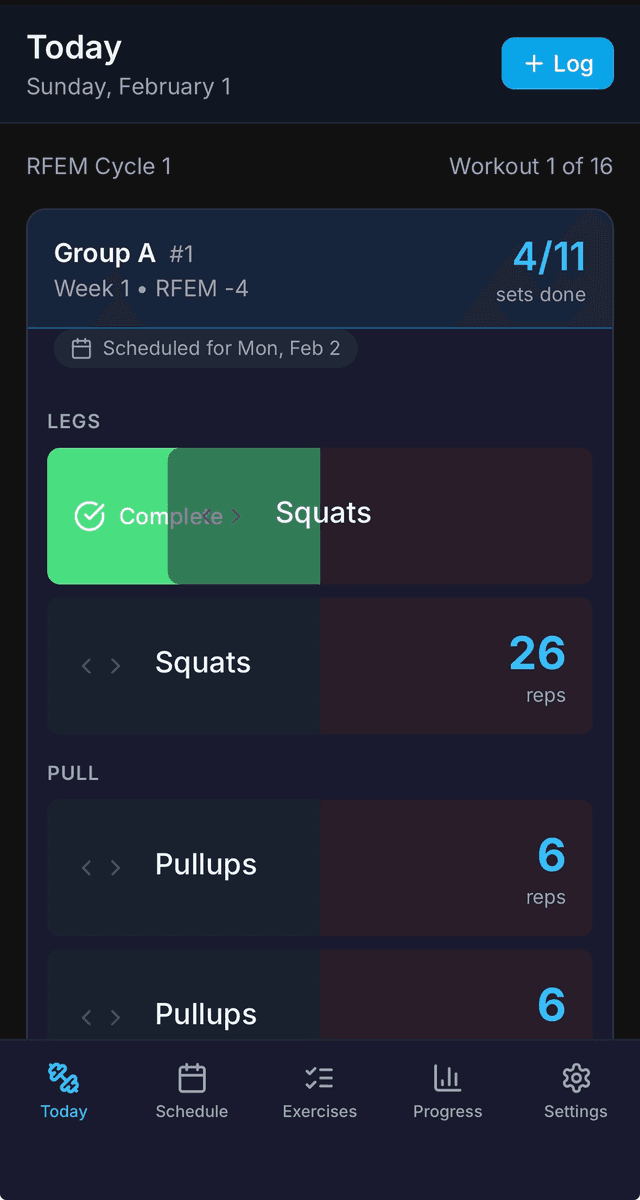
The Today Page
Your Today view shows:
- Cycle Progress Header: The active cycle name and a progress bar
- Workout Header: Group name and total set count
- Scheduled Sets: The sets you need to complete, each showing exercise name, target reps, and target weight (if applicable)
- Completed Sets: Collapsible section showing sets you've already logged
- Today's Stats: Total sets, reps, and unique exercises for the day
Swipe Gestures
Each scheduled set appears as a swipeable card. The first time you see a workout, a hint shows: “Swipe right to complete • Swipe left to skip • Tap to edit details”
Swipe Right
Quick-complete the set at your target reps. If you've enabled the rest timer, it starts automatically.
Swipe Left
Skip the set. It's marked orange and won't count toward your totals.
Tap
Open the detail popup to enter custom reps, weight, or notes.
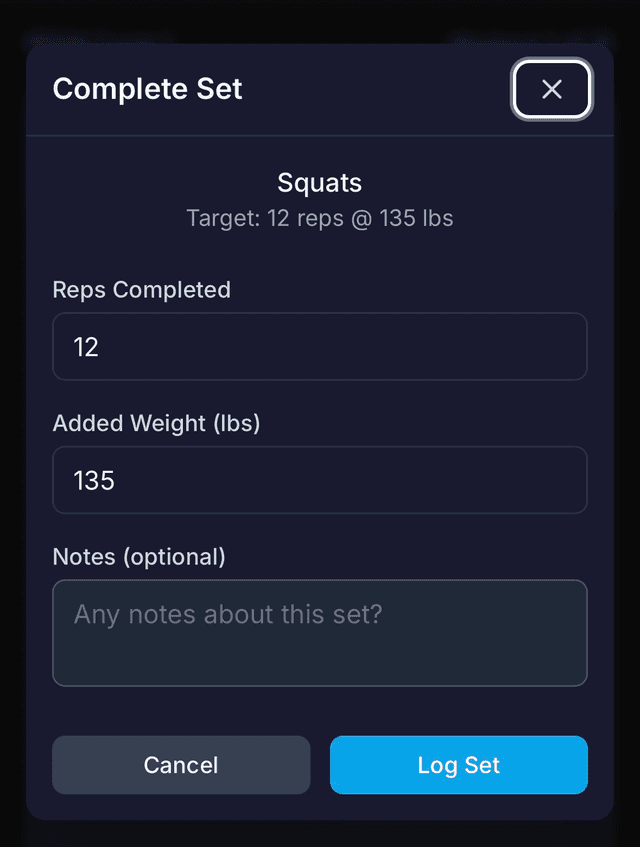
The Set Logging Popup
When you tap a set card, a popup opens with fields specific to the exercise:
- Target display: Shows what you're aiming for (e.g., “Target: 12 reps @ 25 lbs”)
- Reps input: Enter the actual reps you completed
- Weight input: If weight tracking is enabled, enter the weight used
- Custom parameters: Any exercise-specific fields you've set up
- Notes: Optional text for form cues or comments
For time-based exercises, you'll see a timer component and a time input field instead of reps.
The Rest Timer
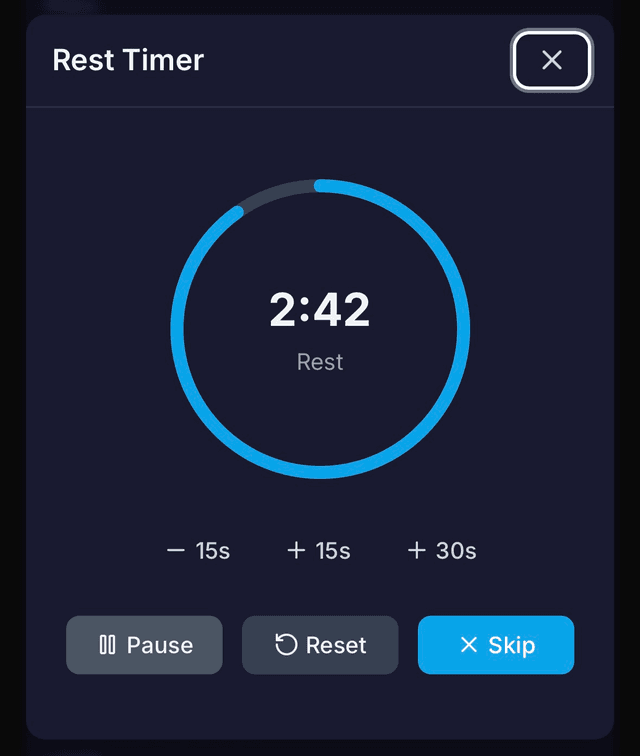
After completing a set (if enabled in Settings), a rest timer appears automatically with:
- A large circular progress ring showing remaining time
- Controls: Pause/Resume, Reset, -15s, +15s, +30s
- Audio cues: countdown beeps in the last 3 seconds, completion sound when done
Warmup sets automatically use 50% of your default rest duration. Tap Done or Skip to close the timer and continue.
Adding Extra Sets
Want to do more than what's scheduled? You can add extra sets to your ongoing workout at any time.
Tap the + Add button in the upper right of the Today screen, select an exercise from your library, and enter your reps (or time), weight, and any notes.
You can add more sets of exercises already in your workout, or sets of completely different exercises. These extra sets are logged alongside your scheduled work and count toward your daily totals.
Completing a Workout
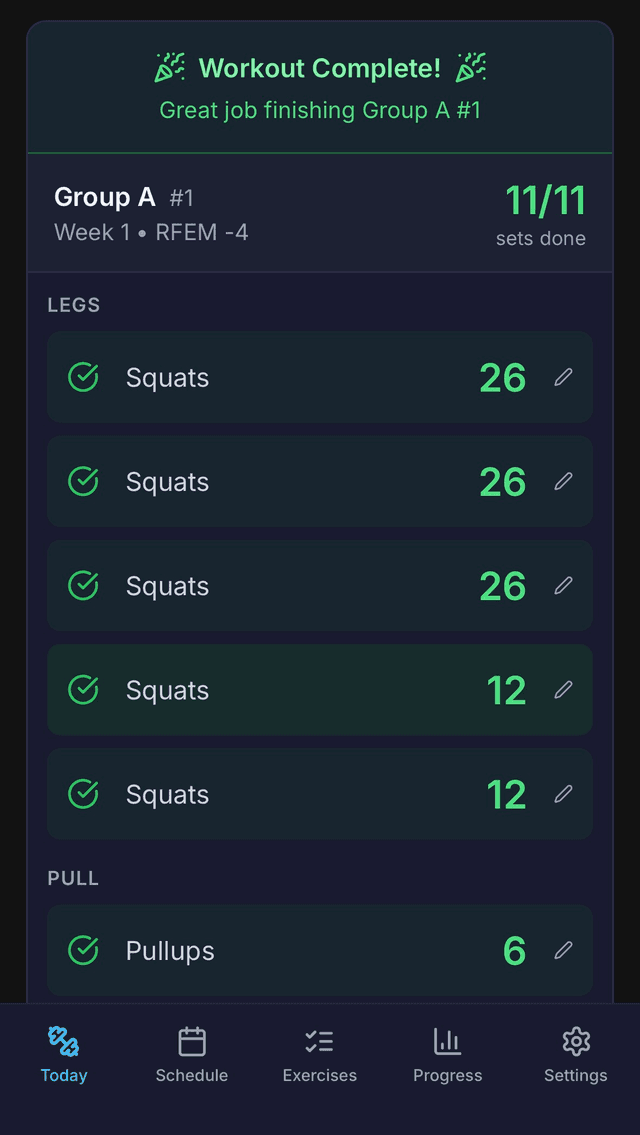
As you log sets, they move from the scheduled list to the completed list. You can:
- Complete naturally: Log all scheduled sets. The workout shows a completion banner.
- End early: Tap End Workout if you need to stop. Remaining sets are skipped.
- Edit completed sets: Tap any set in the completed list to modify it.
After completing a workout, tap Continue to Next to advance to the next workout in your cycle.
Step 6
Ad-Hoc Workouts
Training Outside Your Cycle
Ad-hoc workouts let you log training that's not part of your scheduled cycle: extra work, spontaneous sessions, or training on a rest day.
To create one:
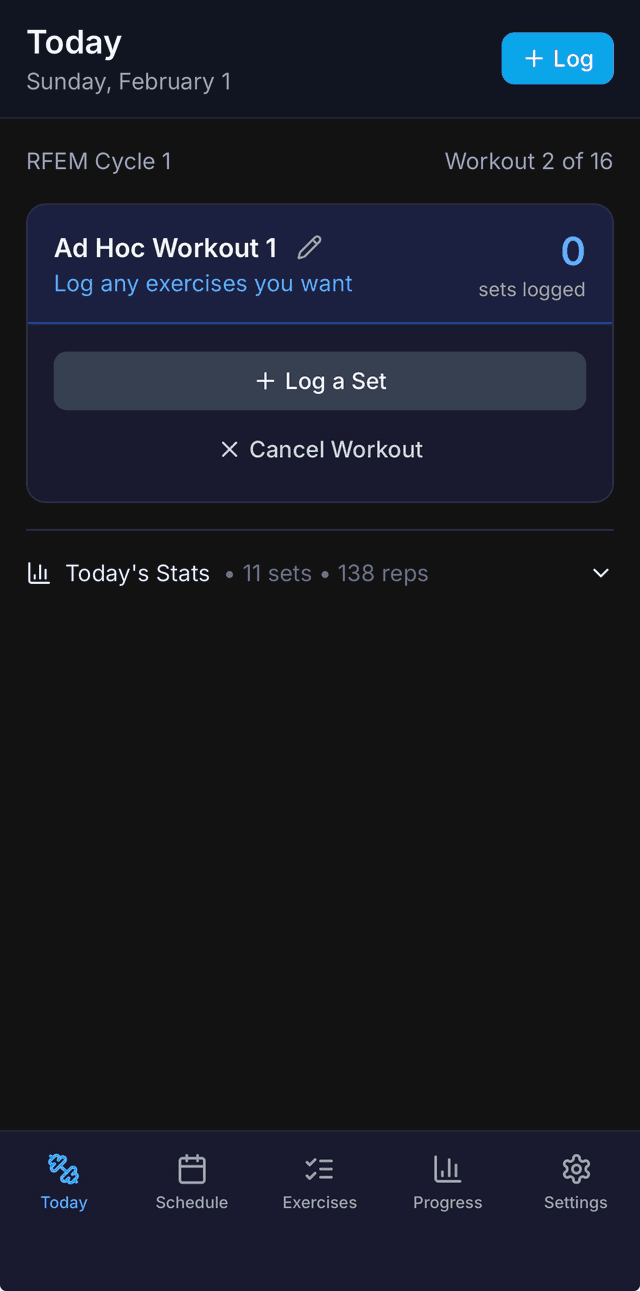
- Tap Log Ad-Hoc Workout from the Today page or Schedule page
- A new workout is created (named “Ad Hoc Workout 1”)
- Tap Log a Set to open the exercise picker
- Select an exercise from your library
- Enter reps/time, weight, and notes
- Repeat for additional exercises
Managing Ad-Hoc Workouts
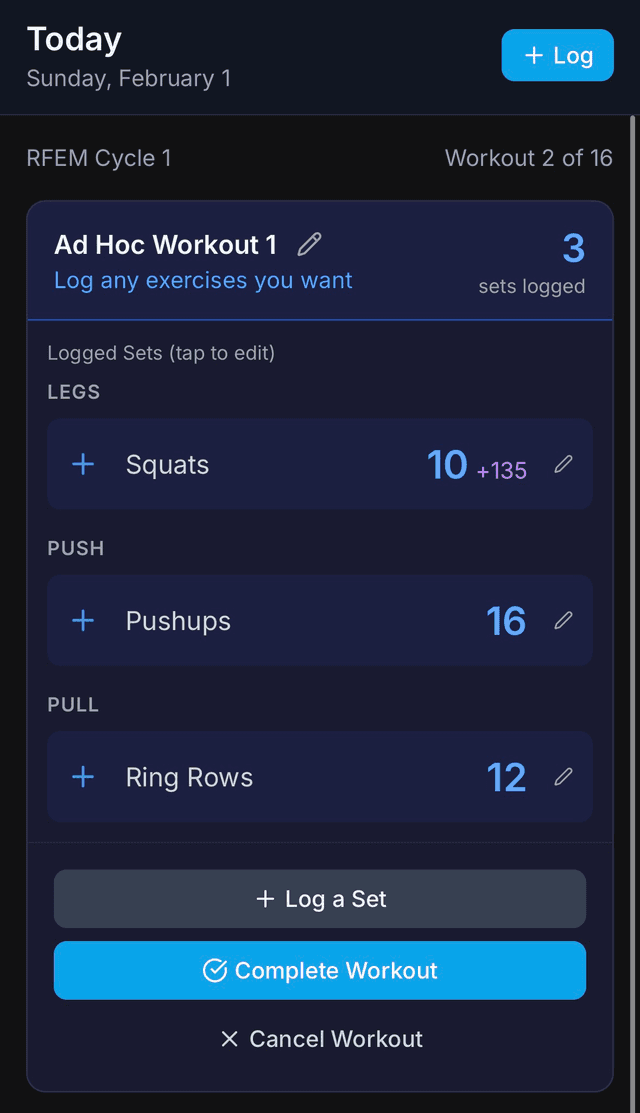
While an ad-hoc workout is active:
- Rename: Tap the pencil icon in the header to change the name
- Complete: Tap Complete Workout when finished
- Cancel: Tap the red Cancel Workout button (requires confirmation)
Ad-hoc workouts appear in your Schedule and Progress pages alongside cycle workouts. They count toward all your progress totals and stats.
Step 7
Progress & History
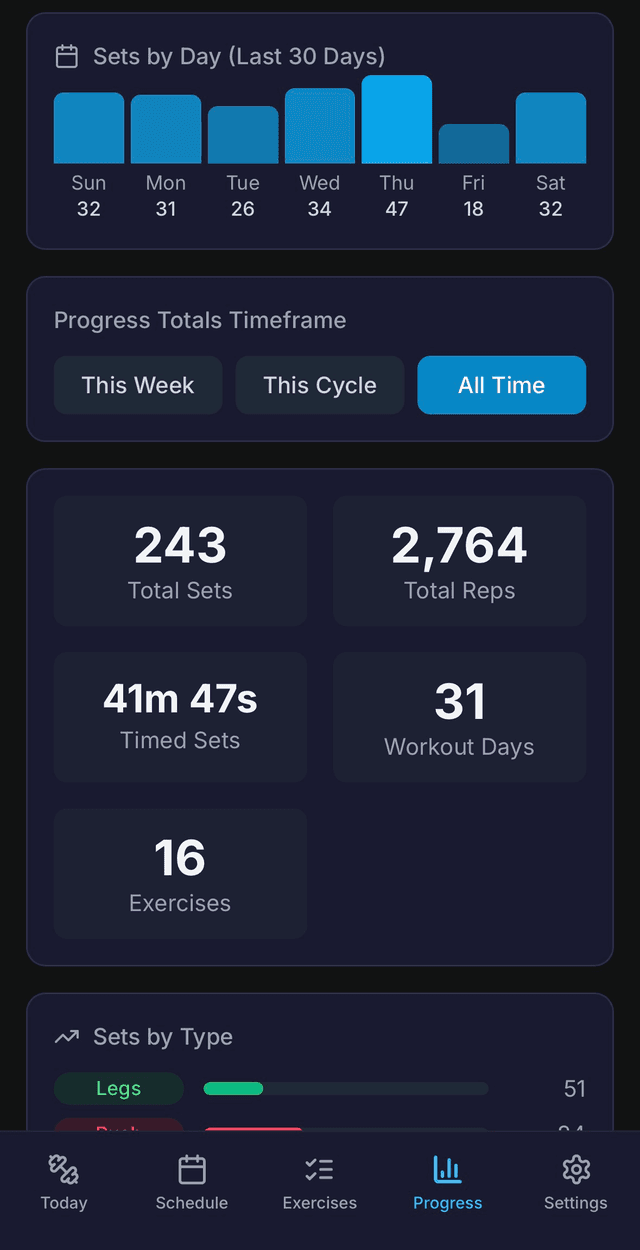
The Progress Page
The Progress tab shows your training analytics. A dropdown at the top lets you filter by:
- This Week: Monday through Sunday
- This Cycle: From your active cycle's start date
- All Time: Your complete training history
You'll see:
- Sets by Day chart: A bar chart showing daily set counts
- Overview Stats: Total sets, total reps, workout days, unique exercises
- Sets by Type: Distribution across Push, Pull, Legs, Core, Balance, Mobility
- Totals by Exercise: Per-exercise breakdown of reps and sets
The Schedule Page
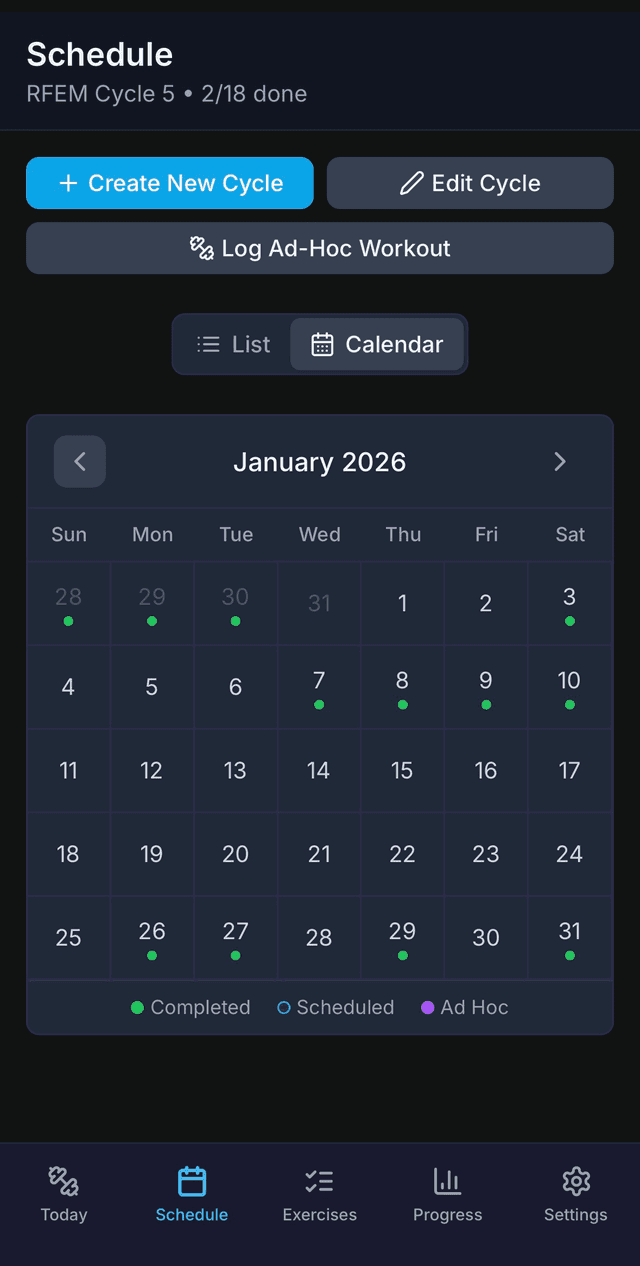
The Schedule tab shows all workouts in your active cycle. Toggle between:
- List View: Upcoming workouts sorted by sequence, with completed and skipped sections below
- Calendar View: Monthly view with colored dots (green = completed, yellow = partial, gray = pending)
Tap any workout card to see details. For upcoming workouts, you can preview the exercises and targets. For completed workouts, you'll see every logged set.
Exercise History
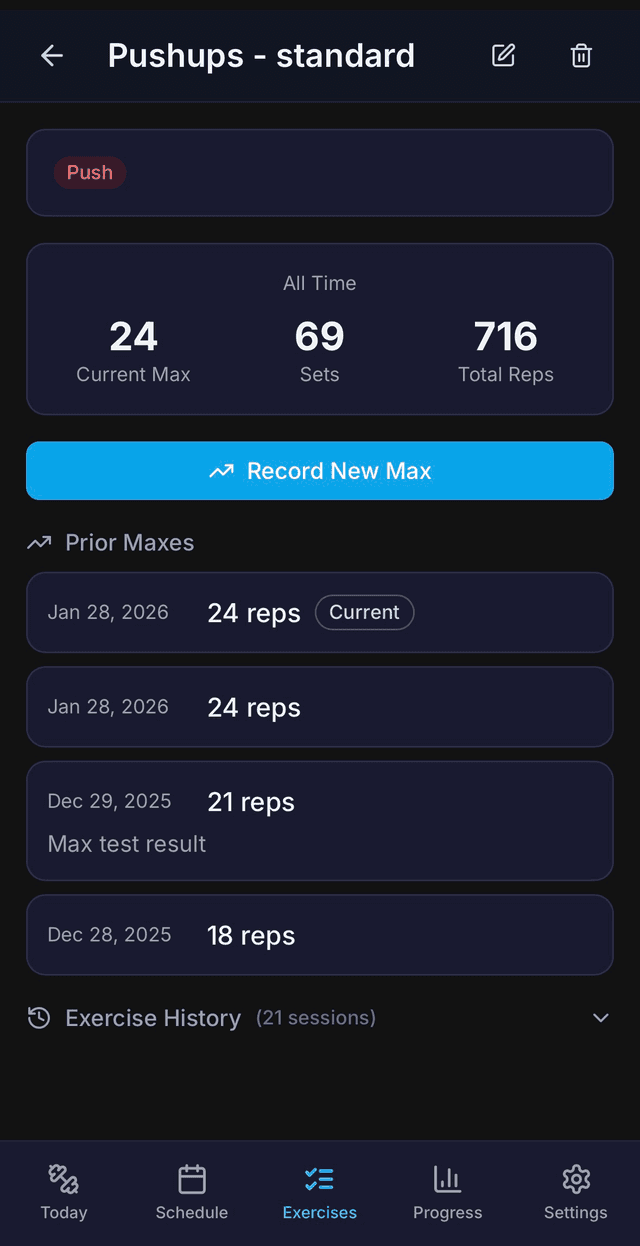
From the Exercises tab, tap any exercise to see its detail page with:
- Current Max: Your latest recorded maximum
- Total Sets & Reps: Filtered by your selected timeframe
- Record New Max: Button to manually record a new max
- Prior Maxes: Chronological list of all max records
- Exercise History: All completed sets for this exercise
This is where you can track how your max has changed over time and see your full training history for any movement.
Ready to Start?
Download Ascend and start your 4-week free trial. No credit card required.
Need Help?
If you run into issues or have questions that aren't covered here, I'm happy to help.